


A good n8n template gives you the structure. It does not spare you from reading it or testing it.
Looking for concrete n8n templates, not another list of links? Here are the 10 n8n templates we recommend for an SME that is just starting: form to CRM, AI lead qualification, email sorting, invoices, follow-ups, a WhatsApp chatbot, social publishing and site monitoring.
For each template you get what it does, the nodes it uses, when to use it, its limits and the link to its official page on n8n.io. Every link was checked on 13 October 2026.
We have been delivering n8n and Make workflows for SMEs for several years. We keep seeing the same mistake: a template imported as-is, switched on on a Friday, sending duplicate emails on Monday. This guide shows you how to avoid that, and when it is better to move to a custom n8n workflow.
What is an n8n template?
An n8n template is a workflow that is already built, shared as JSON. It contains the nodes (the blocks: Gmail, Google Sheets, AI Agent) and their connections. You import it into your instance, connect your own accounts, adapt it, then activate it.
The official n8n documentation describes them as workflows pre-built by n8n and its community. It says you usually need to enter your credentials and adjust the configuration.
A template is therefore not a finished product. It is a working example of an n8n workflow, to be adapted to your tools and your rules.
Where can you find reliable n8n templates?
Three sources, from the safest to the riskiest:
- The official library at n8n.io/workflows. It showed about 13,200 workflows on 13 October 2026, filterable by app and by category. Each page lists the nodes used.
- The Templates button in your n8n editor. It opens the same library. On a self-hosted instance, an organisation can even connect its own internal library.
- The community: GitHub repositories, the n8n forum, blogs. You will find hundreds of free JSON files. Quality varies a lot: audit them before you activate anything.
The official library is not "verified" in the sense of a security audit. Templates are submitted by creators. The audit rules below apply to them too.
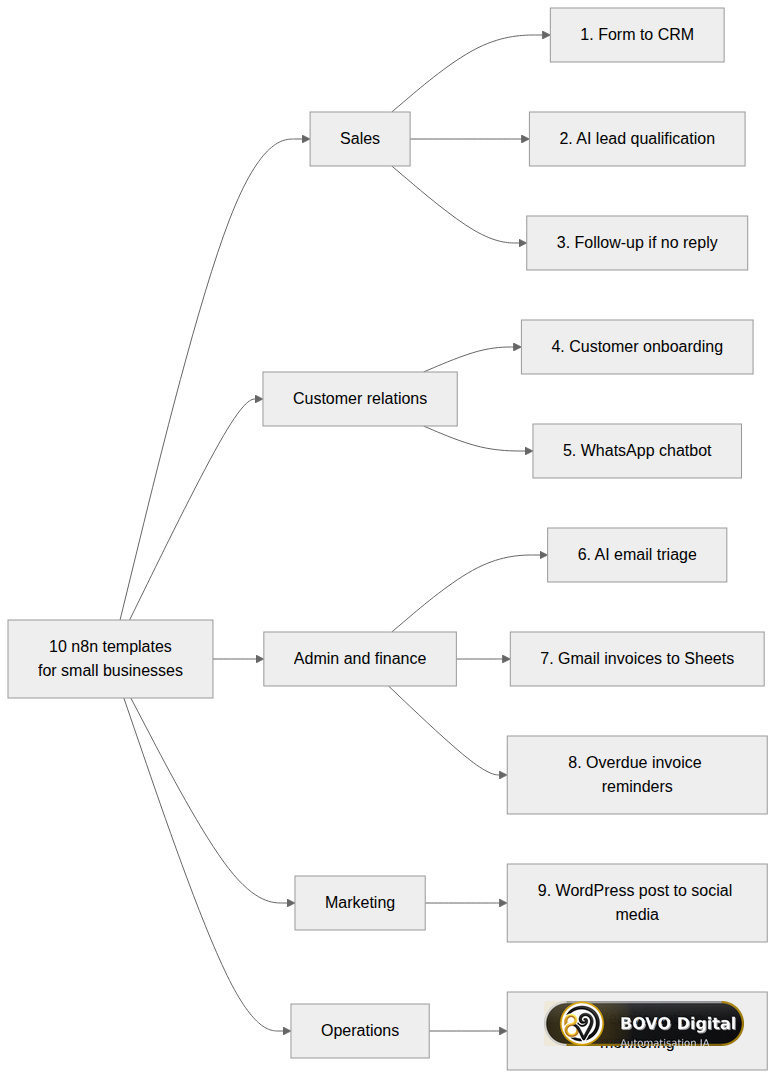 The 10 templates in this guide cover five SME functions, from lead capture to site monitoring
The 10 best n8n templates for an SME
We kept templates that answer real SME needs, with standard nodes and readable logic. For each one, the URL points to its official page on n8n.io.
1. Form to CRM: Typeform to HubSpot
- What it does: every Typeform response creates a contact in HubSpot. If the prospect ticked an interest in your services, their status moves to "opportunity".
- Nodes: Typeform Trigger, Set, HubSpot, IF.
- When to use it: you lose leads between the website form and the CRM.
- Limits: published in 2021, so some nodes may be on an old version. No deduplication: the same email can create two contacts depending on your HubSpot setup.
- Link: Capture leads in HubSpot from Typeform
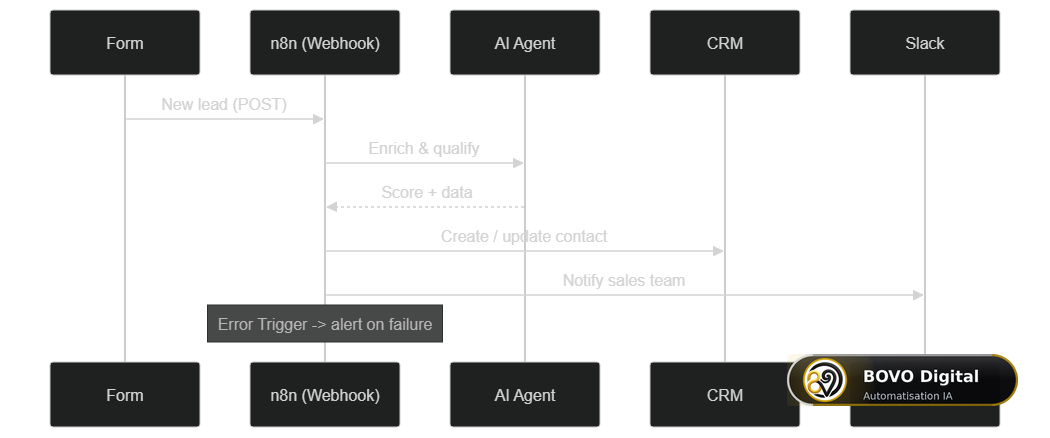 The lead-capture pattern most sales templates reuse, including the error branch they often forget
2. AI lead qualification (BANT method)
- What it does: an n8n form collects budget, role, need and timing. Google Gemini scores the lead as "hot", "warm" or "cold". A Switch node then routes each lead: a booking link for hot ones, a pre-filled WhatsApp conversation for warm ones, a nurturing email for cold ones.
- Nodes: n8n Form Trigger, Google Gemini, Switch, Gmail.
- When to use it: your sales team spends too much time on unqualified requests.
- Limits: the score depends entirely on the prompt. Test it on 20 to 30 past real leads before you trust it with your calendar. No CRM write is included.
- Link: Automate Lead Qualification & Multi-Channel Follow-up with AI (BANT)
3. Automatic email follow-up when there is no reply
- What it does: sends an email sequence from Gmail to a Google Sheets list. Follow-ups go out only if nobody has replied in the thread.
- Nodes: Schedule Trigger, Google Sheets, Gmail, IF, Filter, Code.
- When to use it: chasing sent quotes, event attendees or inactive customers.
- Limits: Gmail enforces sending quotas. For cold outreach, check your GDPR duties (legal basis, unsubscribe). This is not a mass-email tool.
- Link: Gmail campaign sender: bulk-send emails and follow up automatically if no reply
To go further on outreach, read our guide on B2B prospecting with n8n and AI.
4. Customer onboarding: HubSpot, Google Calendar and Gmail
- What it does: when a new customer is created in HubSpot (or via a webhook), an AI agent drafts a personalised welcome email, books a slot in Google Calendar and assigns the customer to an owner.
- Nodes: HubSpot Trigger, Webhook, AI Agent, OpenAI Chat Model, Google Calendar Tool, Gmail.
- When to use it: new customers wait several days for a first contact.
- Limits: an AI agent that emails your customers should be reviewed. Add a human check at the start. The template assumes you are on HubSpot.
- Link: Automate new customer onboarding with HubSpot, Google Calendar, and AI-powered Gmail
If you book meetings with Cal.com rather than Google Calendar, see how to connect Cal.com to n8n.
5. A first WhatsApp chatbot with AI
- What it does: an AI agent replies on WhatsApp using your product catalogue (a PDF brochure imported and indexed).
- Nodes: WhatsApp Trigger, WhatsApp Business Cloud, AI Agent, OpenAI, Simple Memory, Simple Vector Store, HTTP Request.
- When to use it: you want to test a WhatsApp sales assistant before you invest. It had passed 330,000 views on n8n.io on 13 October 2026.
- Limits: the knowledge base is stored in memory and clears on restart. You need a WhatsApp Business Platform (Meta) account and you must follow opt-in rules. No handoff to a human is included.
- Link: Building your first WhatsApp chatbot
Before production, read WhatsApp opt-in that stays CNIL-compliant with n8n and our WhatsApp chatbot tutorial with n8n and Claude.
6. Automatic Gmail sorting with AI
- What it does: each new email is classified by an AI model (priority, work, promotion) and then receives the matching Gmail label.
- Nodes: Gmail Trigger, Text Classifier, Google Gemini Chat Model, Gmail.
- When to use it: a shared inbox (contact@, support@) where urgent requests get buried.
- Limits: every incoming email consumes a model call. The default categories are generic: rewrite them with your real request types.
- Link: Automatically classify and label Gmail emails with Google Gemini AI
7. Invoices received by email to Google Drive and Google Sheets
- What it does: watches unread emails with an attachment, files the PDFs in a Drive folder, then extracts the date, the description and the amount into a Google Sheet with GPT-4o.
- Nodes: Gmail Trigger, Google Drive, Extract From File, Basic LLM Chain, OpenAI, Structured Output Parser, Google Sheets.
- When to use it: preparing the books without retyping every supplier invoice.
- Limits: AI extraction can get an amount wrong. Keep a human check before any accounting export. Scanned invoices need extra OCR.
- Link: Invoices from Gmail to Drive and Google Sheets
8. Chasing unpaid invoices
- What it does: every day, it reads overdue invoices in Google Sheets, has GPT-4o-mini draft a chase email matched to how late the invoice is, sends it via Gmail, logs the result and alerts Slack on error.
- Nodes: Schedule Trigger, Google Sheets, AI Agent, OpenAI Chat Model, Gmail, Slack, Code, IF.
- When to use it: your follow-ups depend on someone remembering.
- Limits: a recent template (June 2026), still lightly used. The tone of a chase email affects the client relationship: have the email templates approved. A wrong status in the sheet triggers an unjustified chase.
- Link: Recover overdue invoices with GPT-4o-mini, Gmail, Google Sheets and Slack
9. WordPress article to X, Facebook, LinkedIn and Instagram
- What it does: fetches a WordPress article, generates an AI caption adapted to each network plus an image, then publishes.
- Nodes: Google Sheets, WordPress, OpenRouter Chat Model, OpenAI, Facebook Graph API, LinkedIn, X (Twitter).
- When to use it: you publish a blog but your social accounts stay empty.
- Limits: manual trigger by default. Each network has its own API permissions, often the longest part to configure. Reread captions before fully automatic publishing.
- Link: Publish WordPress posts to social media X, Facebook, LinkedIn, Instagram with AI
10. Uptime monitoring for your sites
- What it does: every 5 minutes, it reads a list of URLs in Google Sheets, tests each site and sends an email plus a Slack message when a site goes down.
- Nodes: Schedule Trigger, Google Sheets, HTTP Request, Switch, Gmail, Slack.
- When to use it: you run a few sites and want to be alerted before your customers are.
- Limits: if your instance is unreachable, monitoring stops too. This does not replace an external monitoring service for a critical site.
- Link: Host your own uptime monitoring with scheduled triggers
Two more n8n workflow examples worth knowing
- AI monitoring into Slack: RSS feeds, AI sorting, a summary in a channel. See the template.
- Meeting follow-ups with AI: from transcripts, an agent identifies next steps and prepares the invites. See the template.
How do you import and adapt an n8n template?
Importing takes a minute. Adapting it properly takes longer, and that is where reliability is decided.
Three ways to import:
- the Use button on the n8n.io template page;
- the Import from File menu in your instance, with the JSON file;
- a paste of the JSON straight onto the canvas (
Ctrl+V).
 Import, read, create your credentials, adapt, test, connect an alert: you activate only at the end
The six steps we apply for our clients:
- Import without activating. Read the workflow from left to right. The creator's sticky notes often explain the settings.
- Read every Code node and HTTP Request. A Code node runs JavaScript. An HTTP Request can send your data anywhere.
- Create your own credentials. Never reuse a key that sits in a public JSON. Grant the minimum rights.
- Adapt filters and fields. Column names, labels, IF and Switch conditions: this is where the template becomes yours.
- Test with real data, node by node, on a small sample.
- Connect an error alert. n8n provides an Error Trigger node that fires when a workflow fails. Link it to Slack or to an email. A silent failure costs more than a missing workflow.
Two extra habits. Idempotence: the same trigger received twice must not create two contacts or two invoices (use a unique key or an upsert). Versioning: export finished workflows as JSON and store them in Git.
Is an n8n template safe?
Until it is activated, a template runs nothing. The risk appears at activation, with your real access.
- Code nodes: read the JavaScript. If it is unreadable or obfuscated, do not use the template.
- HTTP Request: check every URL that is called. A "technical" call can exfiltrate data.
- Webhooks: authenticate them and validate the payload.
- Community nodes: some templates use them. They only work on self-hosted instances and add third-party code to yours.
To host n8n yourself in good conditions, see our guides on self-hosted n8n on a VPS and n8n with Docker.
Template or custom workflow: when should you go custom?
A template is a good fit for a common, internal need with two tools. It hits its limits quickly when the workflow becomes a system your business depends on.
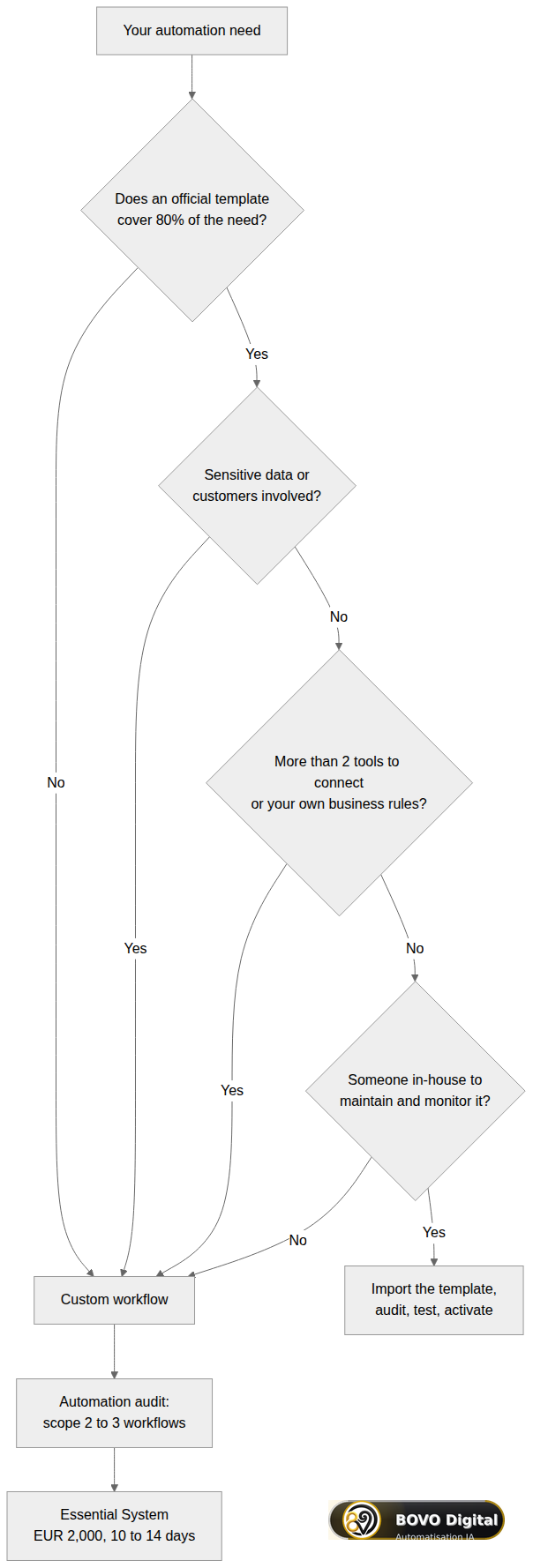 Four questions are enough: does it cover the need, is the data sensitive, how many tools, can someone maintain it in-house
Stay on a template if:
- it covers most of the need without contortions;
- it touches neither your customers nor sensitive data;
- it connects two tools, not five;
- someone in-house can maintain it and watch it.
Go custom if at least one of these is true:
- Your own business rules: a scoring scale, follow-up delays, exceptions by customer type.
- Several tools to keep in sync: CRM + calendar + WhatsApp + invoicing.
- Volume or quotas: API limits, deduplication, retries after an error.
- Sensitive data: customers, payments, health, GDPR compliance.
- Nobody to watch it: you then need error handling, alerts and documentation from day one.
What we see with our clients confirms this. For one client, a simple "webhook to Slack" template was not enough: the lead had to be captured, qualified by AI, followed up on WhatsApp, SMS and email, then offered a Calendly slot. For a WooCommerce shop, publishing to Pinterest meant respecting a quota of 75 pins a day and avoiding duplicates. For a content team, an idea entered in Notion had to produce three AI visuals. No public template handled those safeguards. Those projects are described in our portfolio.
Not sure? Our automation audit starts with a free 30-minute review: we look at your processes and tell you honestly whether a template is enough. If custom work is justified, our n8n automation agency designs, documents and maintains the workflow.
Essential System — €2,000, delivered in 10 to 14 days
Your first automation system, not a patched template: 2 to 3 connected workflows (n8n or Make), error handling with automatic retry, email alerts on failure, one AI agent (ChatGPT or Claude), 1.5 hours of training, full documentation and 30 days of corrective support.
For wider needs: Pro System at €3,500 (5 to 8 workflows, 3 to 4 weeks) or Enterprise System at €5,000 (unlimited workflows, 4 to 6 weeks). BOVO Digital has delivered 118 projects and holds 82 five-star reviews on ComeUp.
Get our n8n template pack
We are preparing a pack of n8n templates adapted to SMEs, with commented nodes and error handling already wired. To be told when it ships, or to receive early the models that match your business, write to us via the contact page and mention "n8n template pack".
What to remember
n8n templates are the fastest way to start: form to CRM, email sorting, invoices, follow-ups, a WhatsApp chatbot, social publishing, site monitoring. Take them from the official library, read them, replace the credentials, test and connect an error alert before you activate.
As soon as a workflow touches your customers, connects several tools or must run unattended, custom work becomes cheaper than tinkering. To estimate a budget, read our n8n and Make automation pricing guide, then book a 30-minute call.
Methodology: how we built this guide
The 10 templates were selected on 13 October 2026 from the official n8n.io library, through its public search. We checked that each page responds, read its description and noted its nodes. Criteria: a real SME need, standard nodes, readable logic.
Sample limits: we did not run every template in production. The number of workflows in the library changes every day. The client examples come from projects delivered by BOVO Digital; some were built with Make rather than n8n, the decision logic staying the same.


